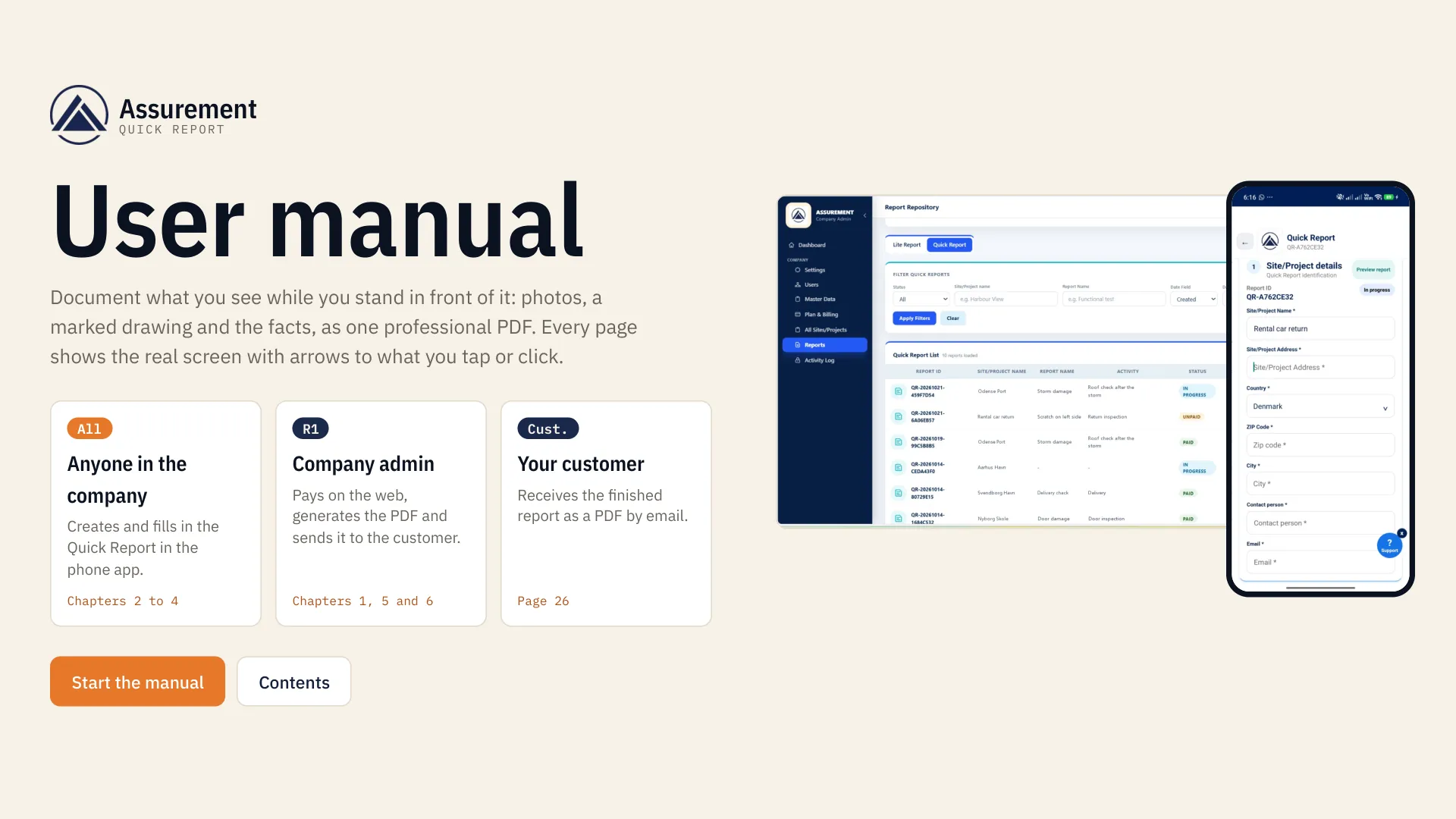
Brugermanual

Brugermanual til Quick Report

Fra tilmelding til PDF'en i kundens indbakke: alle skærme i Quick Report, trin for trin. Læs den her, søg i den, eller hent den som PDF.

Hent hele manualenEnglish · PDF · 27 sider · 10,8 MB

Brugermanualen findes på dansk og engelsk.

Manualens sprog
Quick Report user manual. Side 1 af 27
Side 1 af 27

Kapitel 0 · Before you start

Quick Report user manual

Kapitler

Åbn et kapitel her, eller hent det som sin egen PDF.

00

Before you start

Side 1–5

Contents, how to read a page, Quick Report in four steps and the statuses.

01

Get started

Side 6–7

Create the account as private or as a business with a CVR number.

Åbn PDF1 MB
02

Start a Quick Report

Side 8–10

Open Quick Report in the app, name it and start fresh or from a template.

03

Fill in the report

Side 11–15

Site details and contact person, registration fields, your own fields, drawing, photos and Final Submit.

Åbn PDF2 MB
04

Follow your reports

Side 16–17

The statuses in the app and the notification when a report is ready for payment.

05

Pay on the web

Side 18–22

Find the Quick Reports on the web, check the details and pay.

06

Get and send the report

Side 23–26

Generate, preview, download and email the PDF to the customer.

Åbn PDF3 MB
07

Quick reference

Side 27–27

I want to… with the page for every common task.

Tekstversion

Manualens fulde tekst, kapitel for kapitel.

00

Before you start

Contents, how to read a page, Quick Report in four steps and the statuses.

How to read a page

Every page is one screen of Assurement and one thing to do on it.

Orange ring and arrow

Where to tap, click or type. The number matches the numbered step on the left.

Who

The role that does this step: anyone in the company, or R1, the company admin.

Where

How to get to the screen.

Next

What happens after, so you always know the following screen.

MOVING AROUND

Use the arrow keys or the buttons at the bottom. The numbers at the top jump to a chapter. Point at a step to highlight its arrow.

Quick Report in four steps

For damage, faults, deliveries, handovers, complaints and anything else that must be documented now. No setup and no signatures.

1

Create

App · everyone

Name the site or project and tap Create Quick Report. Start fresh or copy an earlier report.

2

Document

App · everyone

Address, contact person, title, activity, description, your own fields, a marked drawing and marked photos.

3

Pay

Web · R1

After Final Submit the admin is notified and pays 99 kr. excl. VAT on the web.

4

Send

Web · R1

Generate the PDF, download it and send it to the customer by email.

Any trade

Construction, car rental, service, property, transport. Add the fields your trade needs (page 13).

First report free

After that 99 kr. per report excl. VAT (123,75 kr. incl. VAT). No subscription.

Evidence that holds

Every photo is stamped with date, time and GPS. The PDF carries your company name, CVR and logo.

How a Quick Report moves

You see the status on every report in the app (page 16) and in the report repository on the web (page 20).

1

In progress

App

Created and being filled in. Save Draft keeps it here.

2

Awaiting payment

Web: UNPAID

Final Submit is done. The admin gets a notification and pays on the web.

3

Paid

Web: PAID

Generate Report, Download Report and Send by email are open.

4

Free

Web: FREE

The company's first Quick Report. It works like Paid, without payment.

Preview at any time

Preview shows the PDF in every status, in the app and on the web.

Locked after submit

Check everything before Final Submit. Until then the report can be changed or deleted.

One PDF

After payment, Generate Report builds one PDF with everything in it (page 23).

01

Get started

Create the account as private or as a business with a CVR number.

1.1

Create your account

Hvem
NewNew company
Hvor
App or webSign up

The first person from the company signs up. Private is for one person working alone.

  1. Choose the language

    EN or DA at the top of the screen.

  2. Open Sign up

    Next to the Login tab.

  3. Choose the account type

    Private if you work alone. Business for a company with a CVR number (next page).

  4. Fill in your details

    Full name, address, ZIP, city and industry. A profile photo is optional.

  5. Email and phone

    You log in with this email.

  6. Choose a password

    At least 12 characters.

  7. Create account

    The button turns active when every field is filled in.

1.2

Sign up as a business

Hvem
NewNew company
Hvor
Sign upBusiness

Business adds the company name and CVR number. Assurement checks the number in the company registry.

  1. Enter the CVR number

    8 digits. Assurement looks the company up.

  2. Check the company details

    Name, address, ZIP, city, industry and phone come from the registry. Correct them if needed.

  3. Confirm the details

    Tick I confirm these company details.

  4. Create account

    Then log in on the phone app or on the web with your email and password.

02

Start a Quick Report

Open Quick Report in the app, name it and start fresh or from a template.

2.1

Open Quick Report

Hvem
AllAny company user
Hvor
Assurement appHome

Quick Report lives in the phone app. You find it on both home screens.

  1. From the home screen

    Tap Quick Report: create quick site reports on the go.

  2. From a site

    In the site workspace, scroll down and tap Quick Report.

2.2

Name it and create it

Hvem
AllAny company user
Hvor
AppQuick Reports

One field is all it takes to start. The report ID is made for you.

  1. Site/Project Name

    Where the report belongs: a site, a project or for example a rental car.

  2. Create Quick Report

    You choose fresh or template on the next screen.

  3. Your reports

    Every Quick Report with its ID, site, status and who created it.

  4. Preview

    See the report as a PDF at any time.

2.3

Start fresh or from a template

Hvem
AllAny company user
Hvor
Create Quick Reportdialog

Doing the same kind of check again? Copy an earlier report and change only what is new.

  1. Create fresh

    An empty report.

  2. Use existing template

    Copies the data of an earlier Quick Report into the new one.

  3. Pick the report to copy

    Listed by title and report ID.

  4. Cancel

    Back without creating anything.

03

Fill in the report

Site details and contact person, registration fields, your own fields, drawing, photos and Final Submit.

3.1

Site/project details

Hvem
AllAny company user
Hvor
Quick Report1 Site/Project details

Section 1 says where the report belongs and who the contact person is.

  1. Report ID

    Made automatically, with the status In progress.

  2. Preview report

    See the PDF as it looks right now.

  3. Site/Project Address

    The street address.

  4. Country

    Denmark is selected for you.

  5. ZIP Code and City

    Where the site or project is.

  6. Contact person

    The person the report concerns, for example the customer or the person in charge on site.

  7. Email

    The contact person's email address.

3.2

Registration fields

Hvem
AllAny company user
Hvor
Quick Report2 Registration fields

Section 2 describes what you registered. Three standard fields, and you can add your own.

  1. Title

    A short name, for example Scratch on left side. It is the heading of the PDF.

  2. Activity

    What you were doing, for example Return inspection.

  3. Description

    What you found, in your own words.

  4. + Add another field

    For facts your trade needs, for example mileage or vehicle. Next page.

3.3

Add your own field

Hvem
AllAny company user
Hvor
2 Registration fields+ Add another field

Give the field a name. It appears in the form and in the PDF.

  1. Field label

    For example Distance or Vehicle.

  2. Add field

    Active as soon as you type a label. Cancel closes the dialog.

  3. Fill in the new field

    It sits under Description.

  4. Remove

    Deletes the field again.

3.4

Drawing and position

Hvem
AllAny company user
Hvor
Quick Report3 Drawing

Show where it is. Upload one drawing and mark the spot on it.

  1. Upload drawing

    One drawing per report, as an image or PDF page.

  2. Position

    Describe the spot in words, for example Left side or Ground floor, room 12.

  3. Mark the drawing

    Tap the thumbnail to open the drawing and mark the spot.

  4. Zoom

    Use - and + for the details.

  5. Close

    Back to the report.

3.5

Photos and Final Submit

Hvem
AllAny company user
Hvor
Quick Report4 Photos

Take the photo, mark it and describe it. Then submit the report.

  1. + Add photo

    Capture a photo, draw on it to mark the damage, then describe what it shows.

  2. Save Draft

    Keeps the report In progress. Come back to it from the list.

  3. Final Submit

    Locks the report and sends it on for payment. All fields with * must be filled in.

  4. Delete report

    Removes a report you do not need.

04

Follow your reports

The statuses in the app and the notification when a report is ready for payment.

4.1

See the status

Hvem
AllAny company user
Hvor
AppQuick Reports

The list shows every Quick Report in the company and where it is.

  1. In progress

    Being filled in. Tap it to continue.

  2. Awaiting payment

    Submitted. The company admin pays on the web.

  3. Paid

    The PDF can be generated, downloaded and sent.

  4. Created by

    Name and role of the person who made it.

4.2

Ready for payment

Hvem
R1Company admin
Hvor
AppAlerts

When a Quick Report is submitted, the company admin gets a notification.

  1. Quick Report ready for payment

    Names the report ID that is completed and awaiting payment.

  2. Alerts

    The red number counts unread notifications.

  3. Mark All Read

    Clears the counter.

05

Pay on the web

Find the Quick Reports on the web, check the details and pay.

5.1

Find your Quick Reports

Hvem
R1Company admin
Hvor
WebAll Sites/ProjectsQuick Reports

On the web, every Quick Report of the company is listed with its site address and status.

  1. All Sites/Projects

    In the company menu on the left.

  2. Quick Reports tab

    Next to All Sites/Projects. The counter shows how many there are.

  3. Status

    In progress, Awaiting payment or Paid.

  4. View details

    Opens the report's content.

5.2

Check the details

Hvem
R1Company admin
Hvor
Quick ReportsView details

Everything the user registered, in one window.

  1. Status

    AWAITING_PAYMENT until it is paid.

  2. Title, activity and description

    As written in the app.

  3. Photos

    With the marking and the date and GPS stamp.

  4. Close

    The × at the top right.

5.3

Open the report repository

Hvem
R1Company admin
Hvor
WebReportsQuick Report

The repository is where you pay, generate, download and send. The buttons follow the status.

  1. Reports

    In the company menu.

  2. Quick Report tab

    Next to Lite Report.

  3. Filter

    By status, site/project, report name or date. Then Apply Filters.

  4. UNPAID

    Submitted and waiting for you.

  5. Pay to Download

    Opens the payment. Next page.

  6. Paid reports

    Download Report and Send by email.

5.4

Pay for the report

Hvem
R1Company admin
Hvor
RepositoryPay to Download

A Quick Report costs 99,00 DKK excl. VAT. No subscription.

  1. Check the price

    99,00 DKK plus 25 % VAT: 123,75 DKK in total.

  2. Pay now

    Opens the secure payment page. Card details are never typed into Assurement.

  3. Add to cart and pay later

    Collect several reports and pay them together from the cart.

  4. Close

    Back without paying.

5.5

Payment confirmed

Hvem
R1Company admin
Hvor
Report repository

The repository confirms the payment and highlights the report.

  1. Payment confirmed

    The green banner at the top.

  2. The highlighted row

    The report you paid for. The status turns PAID.

  3. Generate Report

    Builds the PDF. Chapter 6.

06

Get and send the report

Generate, preview, download and email the PDF to the customer.

6.1

Generate the PDF

Hvem
R1Company admin
Hvor
RepositoryGenerate Report

Assurement compiles the report in the background. Keep working meanwhile.

  1. Preparing your report

    You are told when it is ready.

  2. OK

    Closes the message.

  3. Loading PDF

    Then Download Report becomes active.

6.2

Preview the report

Hvem
AllAny company user
Hvor
RepositoryPreview, or Preview in the app

One PDF with your company, the project information, the registration, the drawing and the photos.

  1. Executing party

    Your company name, address, CVR and logo.

  2. Project information

    Site, address, report ID, who created it and when it was completed.

  3. Close preview

    Back to the repository.

  4. Registration

    Title, activity, your own fields and the description.

  5. Photo evidence

    Each marked photo with its description.

6.3

Send it by email

Hvem
R1Company admin
Hvor
RepositorySend by email

Send the paid report straight to the customer, as a PDF attachment.

  1. Send by email

    In the row of a paid report.

  2. Recipient name

    Used in the greeting of the email.

  3. Email address

    Where the report goes.

  4. Send report

    The PDF is attached automatically.

  5. Report sent

    Confirms the address it went to.

6.4

What the customer receives

Hvem
R1Company admin
Hvor
The customer's inbox

A clear email from Assurement on behalf of your company, with the report attached.

  1. Report issued by

    Your company name and logo.

  2. Report summary

    Report ID, title, activity, site, address and completion date.

  3. Attached document

    The full report as one PDF.

  4. Sender

    Your name and company. The customer can reply to you directly.

07

Quick reference

I want to… with the page for every common task.

Quick reference

  • Create the company account

    NewNew companyLogin screenSign up
  • Start a Quick Report

    AllAny company userAppHomeQuick Report
  • Copy an earlier report

    AllAny company userCreate Quick ReportUse existing template
  • Add the contact person

    AllAny company user1 Site/Project details
  • Add your own field

    AllAny company user2 Registration fields+ Add another field
  • Mark a drawing

    AllAny company user3 DrawingUpload drawing
  • Add photos and submit

    AllAny company user4 PhotosFinal Submit
  • See the status

    AllAny company userAppQuick Reports
  • Pay for a report

    R1Company adminWebReportsPay to Download
  • Generate the PDF

    R1Company adminReportsGenerate Report
  • Send it to the customer

    R1Company adminReportsSend by email

Sidder du fast?

Ring til os på +45 31 41 81 38, mandag til fredag 8:00–16:00, eller book en gratis demo på 30 minutter, så viser vi dig det.